

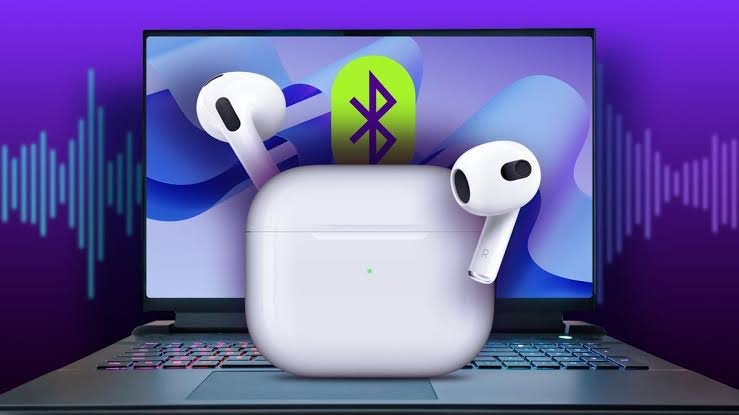
I remember the first time I tried pairing my AirPods with my laptop. I sat there clicking around the Bluetooth menu like it owed me money, convinced something was broken. Turns out, nothing was broken. I just didn’t know where to click. Sounds silly now, but I know a lot of people are stuck at that exact spot right now, staring at a laptop screen wondering why their AirPods won’t show up.
So let’s fix that. Whether you’re on a Windows laptop or a MacBook, I’ll walk you through how to connect AirPods to laptop step by step, the way I’d explain it to a friend over coffee, not the way a manual would.
Why AirPods Don’t Just “Work” Right Away
Here’s the thing nobody tells you upfront – AirPods are built by Apple, and they’re at their smoothest when paired with an iPhone or iPad. The second you try to hook them up to a laptop, especially a Windows one, they behave like a regular Bluetooth headset. No fancy auto-pop-up animation, no instant connection. You have to do the pairing manually, the old-fashioned way.
That’s not a flaw exactly. It’s just… different. And once you know the steps, it takes maybe thirty seconds.
How To Connect AirPods To Laptop On Windows
This is probably why you’re here, honestly. Most of the confusion happens with Windows laptops because the process isn’t as intuitive as Apple wants you to think.
Step 1: Turn On Bluetooth On Your Laptop
Sounds obvious, I know. But you’d be surprised how many times Bluetooth is just… off. Go to Settings, then Devices, then Bluetooth & other devices. Flip that toggle on if it isn’t already.
Step 2: Open The AirPods Case Near Your Laptop
Keep the AirPods inside the case, flip the lid open, and press that little round button on the back for a few seconds. You’ll see the light start blinking white. That’s your cue – it means the AirPods are in pairing mode and ready to be found.
Step 3: Add The Device
Back on your laptop, click “Add Bluetooth or other device,” then choose Bluetooth. Your AirPods should pop up in the list, usually just called “AirPods.” Click on them, and give it a second or two.
Once it says “connected,” you’re pretty much done. Windows sometimes lags a bit here, so don’t panic if it takes a moment longer than expected.
How To Connect AirPods To Laptop On A MacBook
Honestly, this part is a breeze compared to Windows. Apple products just talk to each other more naturally.
Open your AirPods case near the MacBook, and if you’re already signed into iCloud with the same Apple ID as your iPhone, there’s a decent chance it’ll auto-detect and ask if you want to connect. If that doesn’t happen, no big deal – go to the Apple menu, System Settings, then Bluetooth, and select your AirPods from the list.
I’ve had it connect almost instantly on my MacBook Air, while my old Windows laptop from work took a solid twenty seconds and one restart to cooperate. Different machines, different moods, apparently.
What To Do When Your AirPods Won’t Connect
And they won’t, sometimes. It happens to everyone eventually.
Reset The AirPods
Put them back in the case, close the lid, wait about fifteen seconds, then open it again. Press and hold that setup button until the light flashes amber, then white. This basically wipes their memory of previous pairings, which fixes more issues than you’d think.
Check If They’re Already Paired With Another Device
AirPods can only actively connect to one device at a time in most cases. If they’re still linked to your phone and playing music from there, your laptop won’t grab the connection properly. Turn off Bluetooth on your phone temporarily, or just put the phone in another room, honestly.
Also Explore Our Guide On This: Sosoactive
Update Your Laptop’s Bluetooth Drivers
This one’s more common on Windows machines, especially older ones. Outdated drivers cause weird disconnections or a laptop that just refuses to detect any Bluetooth accessory. A quick driver update through Device Manager usually sorts it out.
Using AirPods For Calls And Meetings On Your Laptop
Once connected, you’ll notice two audio profiles pop up sometimes – one for regular music playback and another for calls with a microphone. If your Zoom or Teams calls sound muffled or robotic, switch the audio device manually in your call settings to the one labeled “AirPods Hands-Free” or similar. It’s a small annoyance but an easy fix once you know it’s there.
A Few Small Things I Wish I’d Known Earlier
Battery drains faster when connected to a laptop than a phone, at least in my experience. Maybe it’s the constant Bluetooth handshake, I’m not totally sure why, but keep the case nearby if you’re on a long work call.
Also, don’t expect the same seamless switching between devices that you get with Apple products. Going from iPhone to laptop and back again with AirPods can feel a bit clunky on non-Apple machines. It’s not broken, it’s just built that way.
Wrapping This Up
Connecting AirPods to a laptop isn’t rocket science once you’ve done it a single time, but that first attempt can genuinely be frustrating if nobody walks you through it properly. Now that you know how to connect AirPods to laptop on both Windows and Mac, you can stop clicking around blindly and just get it done in under a minute.
And if it still won’t connect after all this? Sometimes it really is just a stubborn Bluetooth chip having a bad day. Restart the laptop, try again, and it usually sorts itself out.
FAQs
Q: Can I connect AirPods to a laptop that doesn’t have Bluetooth?
A: Not directly, no. You’d need a small USB Bluetooth adapter, which are cheap and work fine for basic audio connections.
Q: Why do my AirPods keep disconnecting from my laptop?
A: Usually it’s a driver issue or interference from other Bluetooth devices nearby. Sometimes it’s just distance – AirPods aren’t great once you’re more than a room away from the laptop.
Q: Can I use both AirPods and a wired headset at the same time on my laptop?
A: Not really, most laptops will default to one audio output at a time. You’d have to manually switch between them in your sound settings.
Q: Do AirPods sound as good on a laptop as they do on an iPhone?
A: Pretty close, honestly. You lose a few of the fancier features like automatic ear detection switching seamlessly, but the actual sound quality holds up well.
Q: Is there a difference between connecting AirPods Pro and regular AirPods to a laptop?
A: Not really in terms of the pairing steps. The process is identical, though AirPods Pro might show slightly different battery or noise control options depending on your laptop’s software support.
Read More Blogs: Repmold-2
