

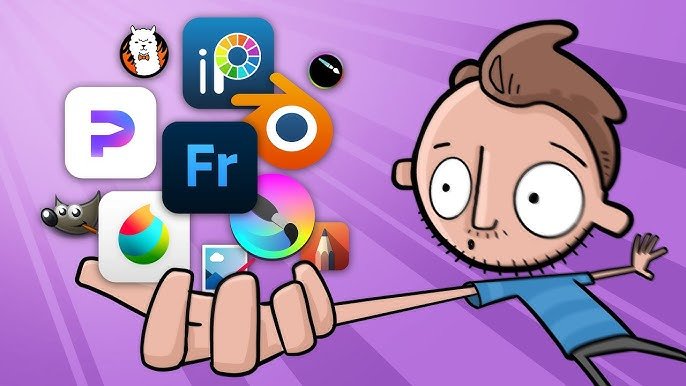
I still remember the day my old laptop couldn’t handle Photoshop anymore. The fans would scream, the app would freeze mid-stroke, and honestly, paying for a subscription just to sketch cartoons on the weekend felt like a joke. So I went down a rabbit hole trying every free art program I could find. Some were garbage. A few genuinely surprised me. One, I’m still using three years later.
If you’re here because you typed “best free drawing software” into Google at 1 a.m., trying to figure out what won’t crash your PC or eat your wallet, you’re in the right place. I’ve used most of these tools myself, some for years, some just long enough to know they weren’t for me. No sponsored nonsense here, just what actually held up when I sat down and tried to finish real drawings, not just poke around the menus for five minutes and quit.
Why Free Doesn’t Mean Bad Anymore
There’s this old idea floating around that free software is always clunky or missing half the features you need. That used to be true, maybe ten years ago. Not anymore. A lot of the best free drawing software out there now rivals paid apps costing hundreds of dollars a year. Artists on Twitter and Instagram post gorgeous illustrations, and half the time you find out in the comments they made it in something that costs nothing at all.
I’m not saying every free tool is perfect. Some have annoying export limits, others lack layer support, and a couple crash if you push them too hard on an older machine. But the good ones? They hold up against professional software, and in a few cases, they hold up better because the developers actually listen to artist feedback instead of chasing subscription revenue.
And look, I get the skepticism. I was skeptical too. My first thought when someone recommended Krita to me was “sure, it’s probably a watered-down toy version of real art software.” I was wrong, and I’m happy to admit it.
My Actual Picks (No Fluff)
Krita — The One I Keep Coming Back To
Krita is open-source, built specifically for digital painting, and it doesn’t hold back. Brush customization is deep, layer management feels intuitive once you get past the first hour of confusion, and it handles big canvases without choking, at least on my mid-range laptop with 8GB of RAM.
What I love is the brush engine. You can tweak texture, opacity jitter, even wetness if you’re doing digital watercolor. It’s not beginner-simple on day one, but give it a weekend and you’ll wonder why you ever paid for anything else. I spent one entire rainy Sunday just messing with brush settings instead of actually drawing, and somehow that felt productive.
There’s also a built-in animation feature, which I didn’t expect. It’s not going to replace dedicated animation software for a full studio project, but for simple looping GIFs or short frame-by-frame tests, it’s more than enough.
Downside? The interface looks a bit dated, and vector tools are weaker compared to something like Inkscape. If you need precise vector shapes for logo work, Krita isn’t really built for that.
GIMP — Not Just for Photo Editing
People know GIMP as “the free Photoshop,” but it’s genuinely solid for drawing too, especially if you install a few extra brush packs. It’s not as painting-focused as Krita, so if you’re doing illustration work, Krita will feel more natural. But for combining photo editing with sketch work, GIMP earns its spot.
I used GIMP for years before switching, mostly out of habit more than anything else. It gets the job done, even if the UI takes some getting used to. The menu structure feels like it was designed by five different people who never talked to each other, but once you memorize where things are, it stops being annoying.
One thing worth mentioning: GIMP’s plugin ecosystem is huge. If there’s a feature you wish existed, chances are someone already built a plugin for it. That flexibility is honestly underrated.
Autodesk SketchBook — Clean and Fast
This one surprised me. SketchBook used to be a paid app, and now it’s completely free, which honestly feels like a steal. The interface is minimal, almost distraction-free, and the brushes feel smooth right out of the box, no fiddling needed.
If you’re someone who just wants to open an app and start doodling without adjusting forty settings first, this is probably your best bet. I recommended it to my younger cousin who wanted to start drawing but got overwhelmed every time she opened GIMP. Within a day she was sketching comfortably, no tutorial required.
It’s lighter on features compared to Krita, so serious painters might eventually outgrow it. But for sketching, concept work, or just relaxing after a long day, it’s genuinely pleasant to use.
MediBang Paint — Built for Comics and Manga
If you’re into comic panels, speech bubbles, or manga-style art, MediBang has templates and tools made exactly for that. It also syncs across devices, which is handy if you sketch on a tablet during your commute and finish on a desktop at home. I’ve done that more than once, half-asleep on a train, adding shading to a panel I started that morning.
The screen tone library alone makes it worth downloading if you’re into black-and-white manga art. Applying halftone patterns manually in other software is tedious, but MediBang has it built right in.
It’s also cloud-based, so your work saves automatically most of the time. I lost a drawing once to a random crash in a different program, and ever since then I’ve appreciated any software that autosaves without me even thinking about it.
Also Explore Our Guide On This: Sosoactive
Inkscape — For Vector Lovers
Not everyone wants pixel-based art. If you’re designing logos, icons, or clean vector illustrations, Inkscape is the free answer to Adobe Illustrator. It has a learning curve, sure, but once you get the hang of paths and nodes, it becomes second nature.
I struggled with Inkscape at first. Bezier curves felt unnatural compared to freehand drawing, and I nearly gave up after the first week. But once it clicked, I realized vector work is actually less stressful in some ways, since everything stays scalable and editable. No worrying about pixelation when you resize something for print.
FireAlpaca — The Underrated One
Barely anyone talks about FireAlpaca, but it deserves more attention. It’s lightweight, loads fast even on older laptops, and has a clean set of brushes that feel great for line art and flat coloring. It doesn’t have the depth of Krita, but for quick sketches and simple illustrations, it’s dependable.
I keep it installed as a backup, honestly. When Krita feels like too much for a five-minute doodle, FireAlpaca is what I open instead.
What About Browser-Based Options?
Sometimes you don’t want to install anything. Maybe you’re on a school computer, or your laptop is already packed with clutter. In that case, Photopea works shockingly well right inside your browser. It even opens PSD files, which saved me once when a client sent a Photoshop file and I had zero intention of installing Photoshop just to open it.
There’s also Sketchpad, a simpler browser tool, good for quick sketches but nowhere near as powerful for serious illustration work. It’s fine for testing an idea before committing to a full painting session in something heavier.
Chrome Canvas is another one worth mentioning if you’re on a Chromebook. It’s stripped down, no layers, nothing fancy, but for jotting down a quick visual idea, it works fine.
Choosing the Right One for You
Honestly, it depends on what you’re drawing and how serious you are about it.
- If you want realistic painting textures, go with Krita.
- If comics or manga panels are your thing, MediBang fits better.
- If you need vector graphics for branding or design work, Inkscape wins.
- If you just want to draw fast without setup, SketchBook is hard to beat.
- If you’re on a Chromebook or restricted computer, browser tools like Photopea keep you moving.
None of these are “wrong” choices. I switched between three of them before settling on Krita as my main tool, and honestly, I still open GIMP occasionally when I need to fix a photo texture for a background, and FireAlpaca when I just want to sketch without thinking.
A Few Honest Tips Before You Download Anything
Don’t install five programs at once thinking you’ll “test them all today.” You’ll get overwhelmed and probably give up on all of them. Pick one, use it for a week, actually finish a drawing in it before judging whether it’s good or not.
And check your hardware. A tablet with 4GB of RAM is going to struggle no matter which app you choose. That’s not the software’s fault. I made this mistake myself, blaming Krita for lag that was really just my ancient laptop begging for mercy.
Also, don’t skip the shortcuts. Every one of these programs has keyboard shortcuts for brush size, undo, zoom, all of it. Learning even five or six shortcuts will speed up your workflow more than any brush pack ever could.
One more thing, save your files often, and export backups. Free software is usually stable these days, but crashes still happen, and losing three hours of shading work because you forgot to hit save is a special kind of heartbreak.
Is Free Software Actually Good Enough for Professional Work?
I get asked this a lot, mostly by people worried that using free tools makes them look less serious. Here’s the honest answer: clients care about the final image, not what software made it. I’ve delivered paid illustration work using Krita more times than I can count, and not a single client has ever asked what program I used.
What matters more is understanding color theory, composition, and having a decent grasp of anatomy or perspective, depending on what you draw. The software is just the brush. A skilled artist with free tools will always outperform a beginner with a thousand-dollar subscription.
Final Thoughts
There isn’t one single “best” option here, no matter how many articles promise otherwise. What matters is which tool feels natural in your hand, or on your stylus, when you’re actually drawing something you care about. I’ve tried most of what’s out there, and the ones listed above are the ones that stuck, not because they’re trendy, but because they work when it counts.
If you’re still unsure, just download Krita tonight and doodle something small. You’ll know within twenty minutes if it clicks. And if it doesn’t, that’s fine too, there’s a whole list here waiting for you to try something else.
FAQs
Q: Is Krita really free forever, or is there a catch?
A:Yes, it’s genuinely free and open-source. No hidden subscription, no watermark, nothing sneaky. Some artists even donate to support development, but that’s optional, not required.
Q: Can I use free drawing software for commercial work?
A: Most of these tools, including Krita, GIMP, and Inkscape, allow commercial use without extra licensing fees. Always double-check the specific license if you’re working on something big, but for the average freelancer or hobbyist, you’re fine.
Q: Which one is easiest for total beginners?
A: Autodesk SketchBook, hands down. The interface doesn’t overwhelm you with buttons and menus the moment you open it, and the brushes feel good without adjusting anything.
Q: Do I need a drawing tablet to use these programs?
A: Not necessarily. A mouse works, though it’s frustrating for detailed line work. If you’re serious about digital art, even a cheap tablet makes a massive difference in control and comfort.
Q: Is MediBang good for something other than comics?
A: Yeah, actually. People use it for general illustration too, it’s just optimized with comic tools like panel templates, speech bubbles, and screen tones built right in.
Q: Can these programs replace Photoshop completely?
A: For most artists, yes. Unless you rely heavily on very specific Adobe plugins or workflows tied to Creative Cloud, tools like GIMP and Krita cover the vast majority of what illustrators and painters actually need day to day.
Q: What’s the best free drawing software for someone who only wants to draw on a phone or tablet?
A: MediBang Paint and Autodesk SketchBook both have solid mobile versions. I’ve used MediBang on my phone during boring waiting-room appointments more times than I’d like to admit.
Read More Blogs: Repmold-2
